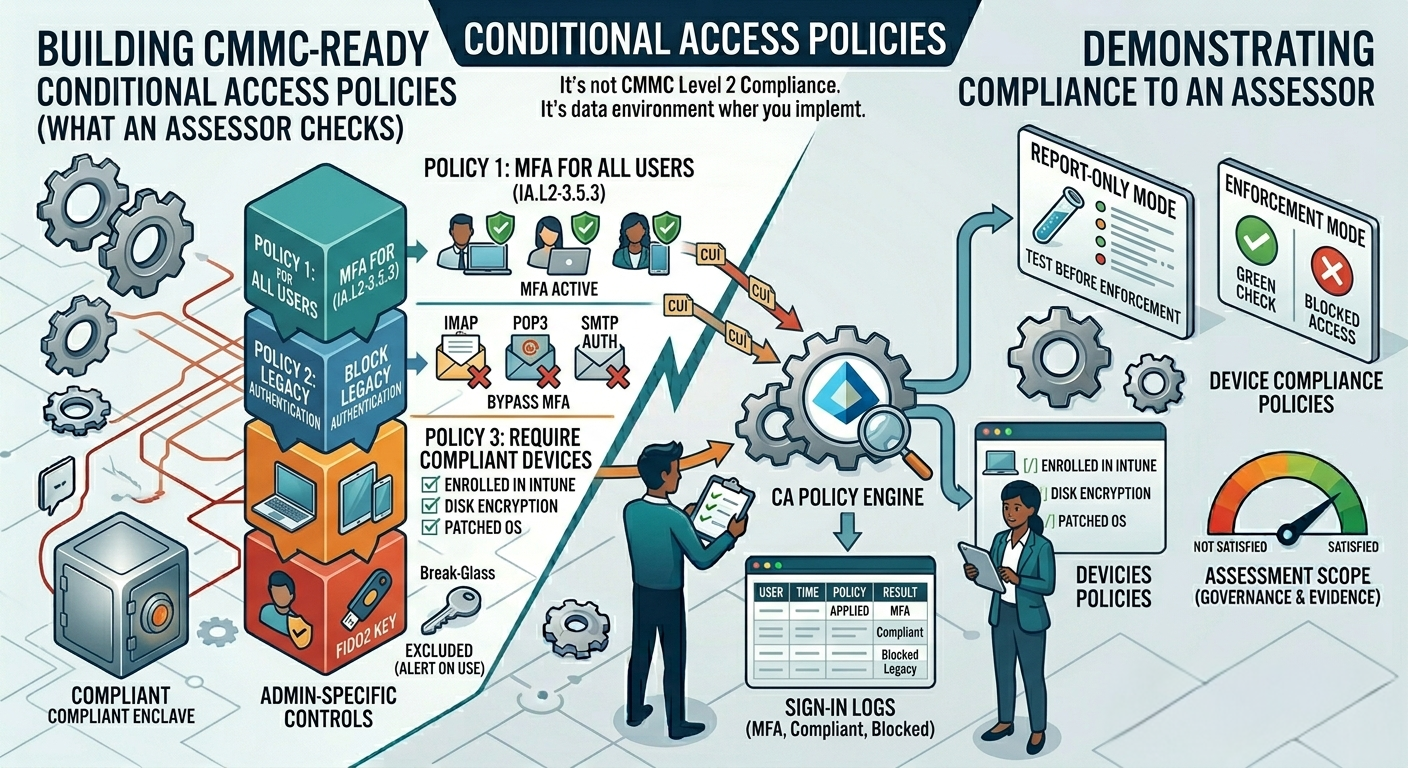
Conditional Access is where most DIY GCC High deployments fall apart. Contractors stand up the tenant, turn on MFA for a few admin accounts, and call it done. Then an assessor walks in and starts asking about legacy authentication, device compliance, and sign-in risk policies, and the answers aren’t there.
Here’s what a CMMC-ready Conditional Access configuration actually looks like.
Understand What You’re Building
Conditional Access is Microsoft Entra ID’s policy engine. It evaluates signals at login time and then decides whether to allow access, block access, or require additional verification. The signals it can evaluate include user identity, group membership, device compliance state, location, application being accessed, and sign-in risk level.
For CMMC Level 2, your CA policies need to address three things: enforcing MFA universally, blocking legacy authentication, and restricting access to compliant managed devices. Everything else builds on top of that foundation.
Policy 1: Require MFA for All Users
This is the baseline. Every user in your GCC High enclave, not just admins, authenticates with MFA on every login. No exceptions for convenience, no exclusions for executives who find it annoying.
Scope this policy to all users and all cloud applications. Use phishing-resistant MFA methods where possible. Microsoft Authenticator with number matching is the minimum. FIDO2 security keys are better for high-privilege accounts.
This directly satisfies IA.L2-3.5.3.
Policy 2: Block Legacy Authentication
Legacy authentication protocols like SMTP AUTH, IMAP, POP3, and older Office clients don’t support modern MFA. If legacy authentication is enabled in your tenant, an attacker with a valid password can bypass your MFA policies entirely.
Create a CA policy that blocks all legacy authentication for all users with no exceptions. Yes, this will break things. Old email clients, shared mailbox configurations, and certain line-of-business applications often rely on legacy auth. Find those dependencies before you turn the policy on, and fix them. Running legacy auth in a CMMC environment is not an option.
Policy 3: Require Compliant Devices
Access to your CUI environment should only be possible from devices that are enrolled in Intune and meet your compliance policy requirements. That means endpoints you manage, that have your security baseline applied, and that you can verify are in a known-good state at login time.
Create a CA policy requiring a compliant device for access to all cloud applications. This works in conjunction with your Intune compliance policies, which should enforce things like disk encryption, OS patch level, antivirus status, and screen lock requirements.
This satisfies several requirements across the CM and SC domains and gives you a strong foundation for your endpoint evidence package.
Policy 4: Admin-Specific Controls
Your privileged accounts need their own CA policies with tighter controls. Consider requiring phishing-resistant MFA specifically for admin roles, restricting admin access to specific trusted locations or compliant privileged access workstations, and enforcing sign-in frequency limits so admin sessions don’t persist indefinitely.
Break-glass accounts need to be excluded from CA policies so you can recover access if something goes wrong, but those accounts should have long, complex passwords, be stored securely, and every use should trigger an alert.
Test Before You Enforce
Conditional Access has a report-only mode that lets you see what a policy would have done without actually enforcing it. Use it. Run your policies in report-only for at least a week before switching to enforcement. Look at the sign-in logs, identify what would have been blocked, and resolve those issues before users start getting locked out.
The goal is enforcement mode. Report-only is a testing tool, not a compliance posture.
What Assessors Want to See
When a C3PAO assessor looks at your Conditional Access configuration, they want to see policies that are actually enforced, not just created. They’ll look at your sign-in logs to verify MFA is happening consistently. They’ll check whether legacy authentication is actually blocked or just theoretically blocked. They’ll ask how you know your device compliance policies are working.
Have your policy documentation ready, know what each policy does and why, and be able to walk an assessor through your sign-in logs without hesitation.
If you want a second set of eyes on your CA configuration before an assessment, reach out at info@initcyber.com.